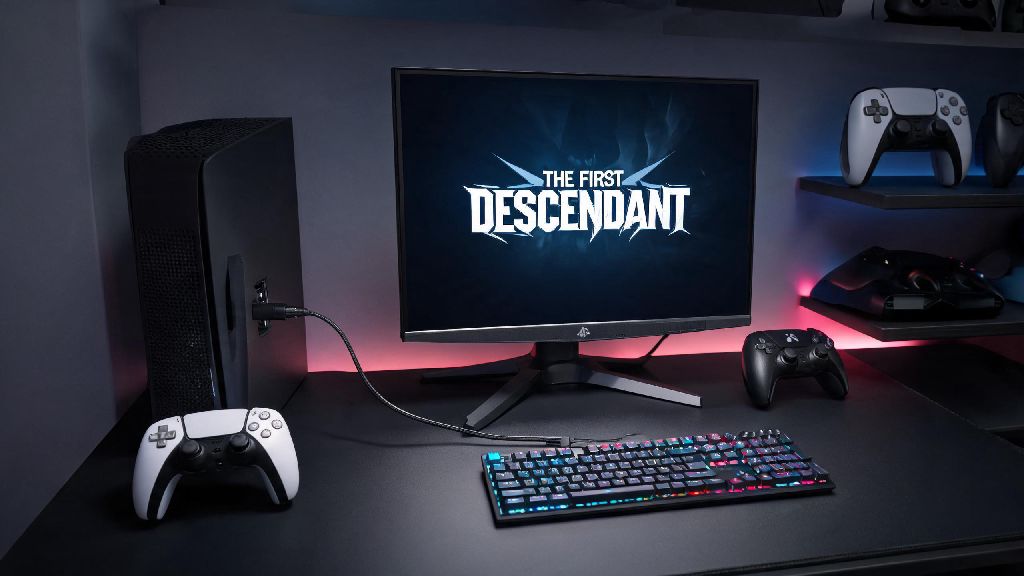
If you’ve been playing The First Descendant on console or mobile and want to bring your hard-earned progress over to PC, you’re not alone. Thousands of players hit confusing snags when they try to figure out how to link The First Descendant to Steam, especially if they have existing saves tied to a Nexon, Google, or Apple account. I’ve gone through this process myself twice when switching between my PS5 and gaming laptop, so I can walk you through every step without the annoying errors most people run into. We’ll cover prep steps, the exact linking workflow, fixes for common issues, and the hidden perks you get once your accounts are connected.
Prep Steps Before You Learn How to Link The First Descendant to Steam
Jumping straight into linking without checking a few key details is the number one reason people lose progress or run into errors. First, confirm which account your existing progress is tied to. Most players have their saves linked to a non-guest account, but if you started playing on a guest profile to test the game, you’ll need to register that guest account to a permanent Nexon, Google, or Apple account first. You can do that by going to Settings > Account > Register Account in-game, and following the prompts to create a permanent login.
Never start the linking process while logged into a guest account, because you will lose all your progress permanently, and Nexon support can’t recover it. Next, make sure your Steam client is updated to the latest version, and that you’ve downloaded The First Descendant on Steam already if you plan to play it there immediately. You also need to have access to the email or phone number linked to your original game account, because you’ll get a verification code during the process. It’s also a good idea to set your Steam profile to public temporarily during linking, as private profiles sometimes trigger connection errors.
Use this quick checklist to make sure you’re ready to go:
Step-by-Step Process to Link Your Accounts Successfully
Once you’ve checked off all the prep steps, the actual linking process only takes about 5 minutes if you follow the steps correctly. First, open The First Descendant on your original device (the one you’ve been playing on) and navigate to Settings > Account > Link Account. You’ll see a list of platforms you can link to, select Steam from the options. A pop-up will appear with a unique QR code and a 6-digit alphanumeric code that expires after 15 minutes.
Do not share this code with anyone else, as it gives direct access to link your game account to an external platform. Next, open your Steam client on PC or the Steam mobile app, go to the "Link External Account" section in your account settings, enter the 6-digit code, or scan the QR code if you’re using the mobile app. You’ll get a pop-up asking you to confirm that you want to link your The First Descendant account to your Steam account. Double-check that the account IDs displayed match both your game and Steam accounts, then tap Confirm.
You’ll get a verification email to the address linked to your original game account, click the link in that email to finalize the process. Once that’s done, you can open The First Descendant on Steam, log in with your linked Nexon/other account, and all your progress will be there. If you started playing on Steam first and want to link to a console or mobile account, the process is almost identical: just start the linking flow from your Steam version of the game instead of the other device. I messed up this step once because I used a code that had expired, so if you take longer than 15 minutes to enter the code, just go back to your game and generate a new one, it only takes 2 seconds.
Common Linking Errors and How to Fix Them
Even if you follow all the steps perfectly, you might run into a few common issues that most players face. First, the "Account Already Linked" error. That usually happens if you linked a different The First Descendant account to your Steam account in the past, or vice versa. You can only link one The First Descendant account to one Steam account at a time, so you’ll need to unlink the old account first if you want to switch. To unlink, go to your Nexon account settings, find Linked Accounts, select Steam, and click Unlink. Note that you can only unlink an account once every 90 days, so make sure you really want to make the switch before you do this.
Another common error is "Progress Not Syncing" after linking. That’s usually because you logged into the wrong account on Steam first. If you opened The First Descendant on Steam before linking, it created a new guest account tied to your Steam profile. You’ll need to log out of that guest account, then log in with your original game account to see your progress. The "Code Invalid" error is also pretty common, and it usually happens if you typed the code wrong (it’s case-sensitive) or generated a code for one account and tried to use it on another. If you’re sure the code is correct, generate a new one and try again.
The last common error is the "Verification Email Not Arriving" issue. Check your spam or junk folder first, and make sure you didn’t enter the wrong email address when you signed up for your game account. If it still doesn’t arrive, you can request a new verification code from the in-game linking menu every 3 minutes. If you’re using a VPN during the linking process, turn it off first. VPNs can cause connection issues between the game servers and Steam servers, leading to failed linking attempts. I ran into this issue when I was traveling abroad last month, and turning off my VPN fixed the problem immediately.
Perks of Linking Your The First Descendant Account to Steam
A lot of players only link their accounts to get cross-progression, but there are a lot of other perks you might not know about. First, you get access to cross-platform multiplayer, so you can play with friends who are on PC, console, or mobile no matter what device you’re using, plus cross-progression that syncs all your unlocks across every platform. You don’t have to start over from scratch if you switch between devices, which is a game-changer for players who game on the go.
You also get exclusive Steam-only rewards like unique character skins, weapon camos, and 500 free in-game currency when you link your account for the first time. These rewards are only available for 30 days after you first launch the game on Steam, so don’t wait too long to link if you want to claim them. Another big perk is that you can make in-game purchases through Steam, which often has seasonal sales and discounts that you won’t find on other platforms. If you use Steam Wallet funds for purchases, you can also earn Steam Points that you can redeem for profile backgrounds, emoticons, and other Steam rewards.
Steam cloud saves are another underrated perk. They keep a secure backup of your game progress, so if your original device breaks or you lose access to your original account, you can still recover all your progress through your linked Steam account. That’s a huge relief for players who have spent hundreds of hours unlocking characters and upgrading weapons. I’ve saved almost $30 on in-game battle passes over the last year by buying them during Steam seasonal sales, so that’s a huge win for me as a regular player.
At the end of the day, the process to link The First Descendant to Steam is straightforward as long as you take the right prep steps and avoid common mistakes. You don’t need any technical skills to do it, and the perks of cross-progression, cross-play, and exclusive rewards make the 5-minute process well worth it. If you run into any issues that aren’t covered in this guide, you can reach out to Nexon support directly through their official help center, and they usually respond within 24 hours for account linking issues. Don’t forget to claim your free Steam rewards once you finish linking, they add a ton of fun customization options for your favorite characters without any extra cost.