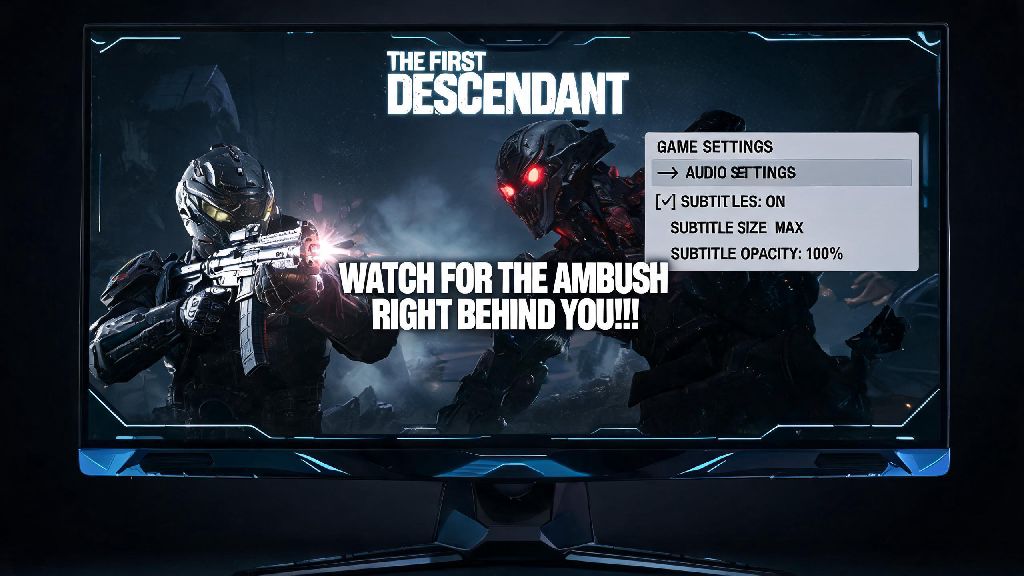
There’s nothing more frustrating than lining up a perfect headshot on a high-priority Void Intercept Boss, only to have a line of mission dialogue subtitles cover the enemy’s weak point right as you fire. If you’ve ever found yourself squinting past text to spot incoming attack cues or appreciate the game’s stunning sci-fi visuals, you’re probably looking for how to turn off subtitles in The First Descendant. Most players don’t realize the setting is tucked away in a specific menu, and many run into glitches that keep subtitles popping up even after they think they’ve disabled them. This guide walks you through every step for all platforms, plus fixes for common issues and context for when you might want to leave them on.
Step-by-Step to Turn Off Subtitles in The First Descendant for All Platforms
The process varies slightly depending on what device you’re playing on, but all paths lead to the accessibility menu inside the game’s main settings. You don’t have to restart your game for the change to take effect, so you can toggle subtitles on or off mid-session if you want them for a cutscene and off for combat. Before you start, make sure you’re not in an active mission, as opening settings mid-combat can leave you vulnerable to enemy attacks.
For PC players: Open the main menu by hitting Escape, then click the Settings menu icon shaped like a gear in the top right corner. Navigate to the Accessibility tab on the far right of the settings menu, then scroll down until you see the Subtitle Toggle option. Click the toggle to switch it to Off, and your changes will save automatically. You can also adjust subtitle opacity and font size in this same menu if you’d prefer to make them less intrusive instead of turning them off entirely.
For PlayStation 5 and PlayStation 4 players: Press the Options button on your controller to open the in-game menu, then scroll to the Settings option. Select Accessibility from the side menu, then find the Subtitles line and toggle it off. You can back out of the menu immediately and the change will apply right away. If you only want to turn off combat subtitles and keep them for cutscenes, you can adjust that specific setting right below the main subtitle toggle.
For Xbox Series X/S and Xbox One players: Press the Menu button on your controller to pull up the in-game menu, then navigate to Settings. Select the Accessibility tab, then find the Subtitle toggle and switch it to Off. No extra save steps are needed, so you can jump right back into gameplay. Xbox players also have the option to turn off speaker labels for dialogue if they want to keep subtitles but remove extra text clutter.
Why Players Choose to Disable Subtitles in The First Descendant
Subtitles are a great accessibility feature for many people, but they can get in the way of fast-paced looter shooter gameplay for those who don’t need them. The first and most common reason is reducing on-screen clutter. The First Descendant already has a lot of UI elements on screen during combat: health bars, ammo counts, ability cooldown timers, enemy markers, and loot drop notifications. Adding subtitles on top of that can make it hard to spot critical cues, like red warning flashes for incoming unblockable attacks.
Another big reason is to get a more immersive cinematic experience during story cutscenes. The game has gorgeous character animations and sweeping sci-fi landscapes, and subtitles covering the lower third of the screen can pull you out of the moment. I used to keep subtitles on by default until I watched the opening cutscene for the recent Vespers update without them, and I noticed so many small visual details I’d missed before, like the faint scar across Jayber’s left cheek and the way the Void energy shifts color when it reacts to the Descendant core.
Some players also turn off subtitles to force themselves to listen to dialogue more carefully, which can help with remembering lore details and mission objectives. That’s not for everyone, but it’s a nice side effect if you’re someone who tends to read subtitles and tune out voice acting. It can also make group play more engaging, as you’re more likely to talk to your squad about the story as it unfolds instead of focusing on reading text.
Troubleshooting Common Subtitle Glitches That Won’t Go Away
If you followed the steps above and subtitles are still popping up during gameplay or cutscenes, you’re not alone. This is a common glitch that many players report, especially after big game updates that reset config files. Most fixes are quick and don’t require any technical skill, so you can get back to clutter-free gameplay in a few minutes.
Try these fixes if your subtitles won’t stay off:
If none of these fixes work, you can report the bug to the official support team, but most players find one of these four steps resolves the issue immediately. It’s also a good idea to double check that you didn’t accidentally turn on subtitle options for specific languages, as that’s another easy to miss setting that can keep text on your screen. The game automatically enables subtitles for your default system language on first launch, so if you recently changed your system language you might have two separate subtitle settings turned on without realizing it.
When You Should Keep Subtitles Enabled (Even If You Usually Turn Them Off)
While turning off subtitles makes combat smoother for a lot of players, there are times when keeping them on is a better call. Accessibility needs always come first, so if you rely on subtitles to follow dialogue or understand what’s happening in the game, you never have to turn them off. There are also accessibility options to adjust subtitle size and opacity if you want them to be less intrusive instead of turning them off entirely, which is a great middle ground for many players.
You might also want to keep subtitles on if you’re playing with the game audio turned off, or if you’re in a group chat with friends and talking over the game sound. It’s easy to miss mission updates or boss dialogue if you can’t hear the audio, so subtitles help you stay on top of what you’re supposed to do next. This is especially helpful for time-limited event missions, where missing a single objective prompt can make you fail the entire run and lose out on rare loot.
Another good time to turn subtitles back on is when new story content drops. The First Descendant has a lot of specific lore terms and character names that can be hard to catch the first time you hear them, and subtitles make it easier to follow the plot and remember key details for future missions. You can always toggle them back off once you’re done with the new cutscenes, so you get the best of both worlds. Many players also keep subtitles on when they’re playing with new characters, as it helps them learn the unique lines and ability callouts faster, which makes group coordination easier.
Customizing your gameplay settings to fit your preferences is one of the best parts of playing a looter shooter like The First Descendant, and getting rid of unnecessary on-screen clutter can make a huge difference in how much you enjoy your runs. Whether you’re turning off subtitles to get a better view of boss weak points or to enjoy more immersive cutscenes, the steps we covered make the process quick and easy for every platform. If you run into issues where the setting won’t stick, the troubleshooting tips we shared will fix almost every common glitch related to how to turn off subtitles in The First Descendant. At the end of the day, the best setting is the one that makes the game fun and accessible for you.