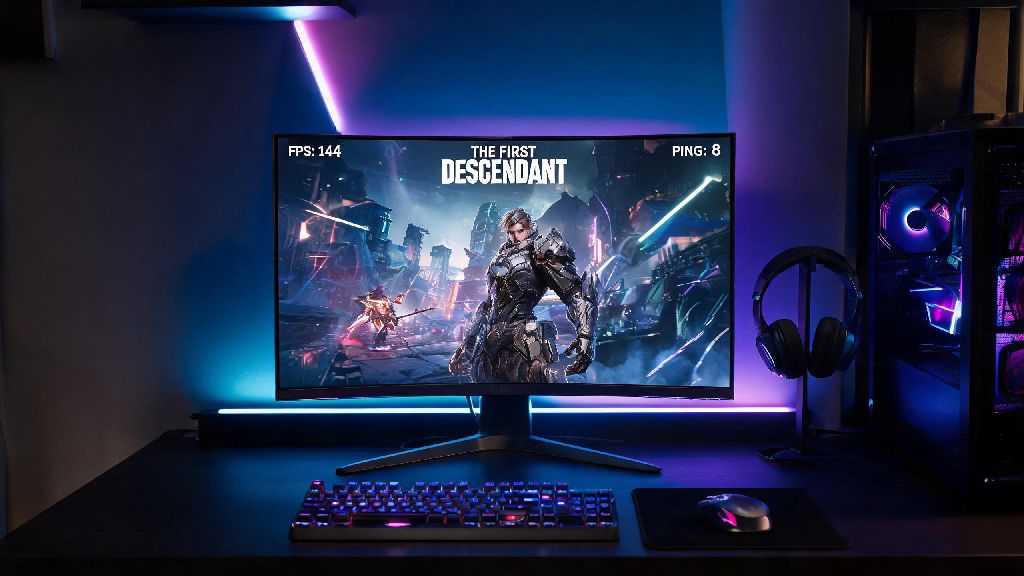
There’s nothing more frustrating than lining up the perfect shot on a world boss, only for your game to stutter for three full seconds and leave you staring at a respawn screen. I’ve been there too, grinding for new descendants and rare mods only to have performance issues ruin entire co-op runs. If you’re sick of lag, frame drops, and unresponsive controls, this guide will walk you through how to make The First Descendant run better on almost any device, no expensive hardware upgrades required.
Optimize In-Game Settings First for Quick Performance Gains
You don’t have to sacrifice all visual quality to make The First Descendant run better, either. Most of the biggest performance drains come from a small handful of settings that you can tweak in under two minutes, with almost no noticeable difference to how the game looks during fast-paced combat.
Display mode is the first setting you should adjust. Always use fullscreen exclusive mode instead of borderless windowed, even if you alt-tab often. Fullscreen mode gives the game exclusive access to your GPU resources, cutting down on input lag and giving you an immediate 5-10 FPS boost on most devices. For console players, make sure you have performance mode enabled instead of quality mode – the 60 FPS you’ll get is well worth the minor drop in texture resolution.
Shadow quality is the single biggest FPS hog in the game. Most players can drop this setting from ultra to medium without noticing a difference during fights, and you’ll get a 15-20 FPS boost on mid-range and lower-end hardware. If you’re still struggling to hit consistent frames, drop shadows all the way to low – you won’t even miss them when you’re dodging boss attacks and collecting loot.
Upscaling technology is another easy win that most people overlook. If you have an NVIDIA GPU, use DLSS set to quality mode for the best balance of performance and visual clarity. AMD users can use FSR 3, and Intel users can use XeSS for similar results. On handheld devices like the Steam Deck, set FSR to balanced mode and you’ll easily hit 60 FPS for most missions without draining your battery too fast.
How to Make The First Descendant Run Better With Simple System Tweaks
Even if you have your in-game settings perfectly optimized, background processes and outdated software can drag your performance down. These small system-level tweaks take almost no time to implement, and they’ll make a huge difference for both frame consistency and input lag.
First, close any unnecessary background apps before you launch the game. Chrome tabs with 10+ open pages, unused streaming software, and even Discord if you’re not using it for voice chat can eat up RAM and GPU resources that the game could be using. If you’re on PC, you can use the task manager to see what apps are using the most resources and close them before you play.
Set The First Descendant to high priority in Task Manager for even better performance. To do this, launch the game, alt-tab out, open Task Manager, go to the Details tab, right click on The First Descendant process, and set priority to High. Don’t set it to Real Time, that can cause system instability and crashes. This tweak gives the game higher priority for CPU resources, which cuts down on random stutters during crowded fights.
Make sure your GPU drivers are up to date too. NVIDIA, AMD, and Intel all release regular driver updates that include game-specific optimizations for new titles, and you’d be surprised how much of a performance boost a simple driver update can give. For console players, clear your system cache every few months – leftover temporary files from game updates and other apps can cause unexpected slowdowns over time.
Fix Common Network Issues That Cause Stuttering and Lag
Even if your hardware is top of the line, bad network connectivity can make The First Descendant run worse than it should. As an always-online looter shooter, the game relies on a steady connection to servers to register hits, sync co-op progress, and load in enemy spawns. A lot of players mistake network lag for hardware performance issues, so these fixes are worth testing first if you’re having unresponsive controls or rubberbanding.
Use a wired Ethernet connection if possible – Wi-Fi is far more prone to packet loss and latency spikes, especially if you’re far from your router or have lots of other devices connected to the same network. If you have to use Wi-Fi, switch to the 5GHz band instead of 2.4GHz, it’s faster and less prone to interference from other devices like microwaves or smart home gadgets.
Also make sure you’re connected to the nearest available game server. The game’s auto-select feature sometimes picks a server that’s further away for no reason, so you can manually select the closest server in the game’s settings to cut down on ping. If you’re playing co-op with friends from other regions, try to pick a server that’s close to all players to avoid one person dragging the whole group’s connection down.
Try these quick network fixes if you’re still having issues, they take less than two minutes to test:
Optimize Mod and Loadout Choices for Smoother Gameplay
One overlooked factor that can cause unexpected frame drops is your in-game loadout and mod setup. Even high-end PCs can stutter if you’re stacking lots of mods that add extra particle effects, or if you’re playing co-op with three other players all using flashy ultimate abilities at the same time.
Avoid stacking multiple mods that add persistent screen or world effects, like mods that leave burning trails on the ground, constant glowing auras around your character, or extra floating projectile spawns. Each of these effects adds extra rendering load that adds up quickly during crowded missions with lots of enemies. You can keep the mods that give you big stat boosts, just swap out the ones that add unnecessary visual effects if you’re struggling with performance.
You can also turn off other players’ ability effects in the game’s settings to cut down on extra rendering work. This is a game-changer for co-op missions, where four players all using their ultimate abilities at once can drop frames by 30% or more even on high-end rigs. You’ll still be able to see your own effects, so you won’t lose any situational awareness during fights.
If you’re playing on a really low-end device, stick to characters with less flashy ability effects first. Characters like Bunny or Ajax have much simpler visual effects for their abilities compared to characters like Viessa or Gley, who have constant ice or fire particle effects that take more GPU power to render. You can always switch to flashier characters once you’ve got your performance locked in.
You don’t need to drop hundreds of dollars on new hardware to get smooth, enjoyable gameplay. Most of the tweaks I’ve listed here take 10 minutes or less to implement, and they’ll fix 90% of common performance issues for most players. I used these exact fixes when I was playing on my old 1660 Super laptop, and I went from inconsistent 30 FPS on medium settings to a solid 60 FPS on high settings with almost no noticeable visual downgrade. If you follow these steps, you’ll be able to make The First Descendant run better, no matter what device you’re playing on, so you can get back to grinding for rare mods and taking down world bosses without interruptions.