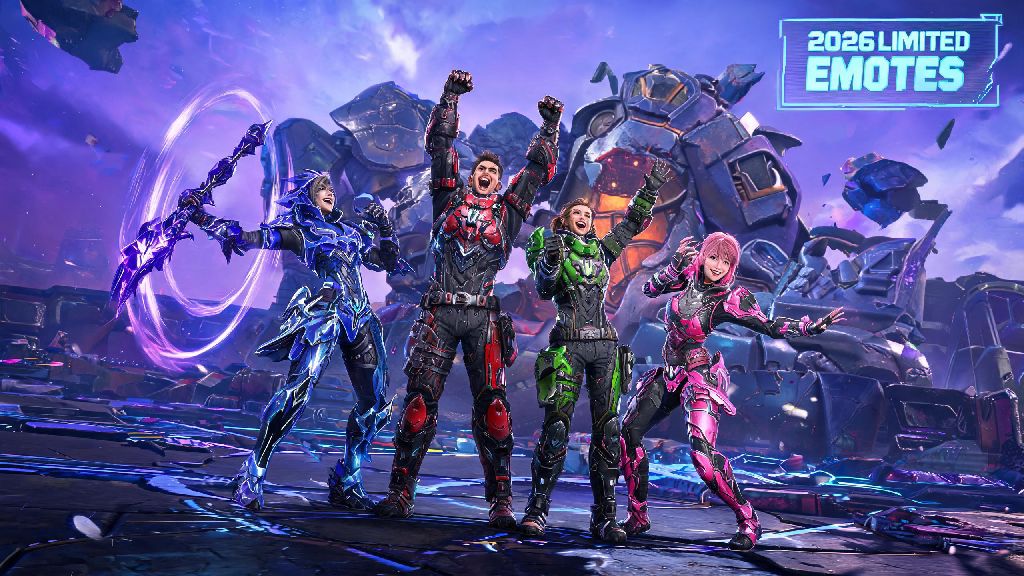
If you’ve spent hours grinding Void Chasers missions with random co-op partners in the 2026 update of The First Descendant, you’ve probably been in a spot where typing a “great job” in chat feels too slow after a perfect boss takedown. Learning how to emote in The First Descendant PC lets you celebrate wins, ask for backup, or even tease a teammate who missed an easy loot grab without taking your fingers off your movement keys for long. The 2026 patch added 12 new limited-edition emotes, including a fan-voted Void Spear twirl and a silly snack break animation, so there’s never been a better time to get the hang of this small but game-changing feature. Most new players miss the emote settings during their initial onboarding, but we’ll break down every step you need to start using reactions right away.
How to Emote in The First Descendant PC: Default Controls and Quick Setup
If you’re using the default control scheme in the 2026 build, you don’t need to mess with any settings to use basic emotes right out of the gate. Hold down the T key while you’re in any match, lobby, or social hub to pull up the circular emote wheel, then move your mouse to select the emote you want to use. Release the T key to trigger the animation immediately. New players often make the mistake of tapping T instead of holding it, which pulls up the text chat box instead of the emote wheel, so keep that in mind if you’re not seeing the menu pop up at first.
You can use emotes almost anywhere except during active boss fight cutscenes or when you’re in the middle of reviving a downed teammate, so feel free to mess around with them in the pre-mission lobby to get the hang of the timing. If you find the T key awkward to reach while you’re holding WASD for movement, you can reassign the emote wheel bind in the Controls > Communication menu of your settings tab. Many veteran players bind the emote wheel to a side mouse button for even faster access during busy missions. If you’re still confused about how to emote in The First Descendant PC after adjusting your keybinds, you can test them out in the private training range without worrying about interrupting a mission.
How to Unlock and Equip New Emotes in the 2026 Update
The 2026 Winter Void Event added 17 new emotes to the game, ranging from silly dance animations to tactical callouts that help you communicate with your team without chat. You can find all your owned emotes and track unlockable ones in the Customization > Emotes tab of your main menu. To equip new emotes to your wheel, just drag and drop them into the 8 available slots on the wheel interface. You don’t have to fill every slot if you only use a handful of reactions regularly, and you can swap them out whenever you want between missions.
Some of the easiest free emotes to unlock for new players in 2026 include:
Paid emotes from the premium battle pass or in-game shop are purely cosmetic, so don’t feel like you need to spend real money to get useful emotes for team communication. The free track of every 2026 battle pass includes at least 4 new emotes, so you’ll build up a solid collection just by playing regularly. If you link your Nexon account to your Twitch account during official 2026 drop events, you can get exclusive limited-time emotes that never come back to the shop, so keep an eye on the official social media accounts for drop schedules.
Common Emote Glitches and Fixes for PC Players in 2026
Even with the 2026 quality of life updates, a small number of PC players run into issues with emotes not working as expected, and most of these fixes take less than a minute to implement. The most common glitch is the emote wheel not popping up even when you press the correct bind, which is almost always caused by a conflicting keybind with another system or a third-party app running in the background. First, double check your keybind settings to make sure no other function is assigned to the same key as your emote wheel, then close any overlay apps like Discord or Nvidia GeForce Experience that might be intercepting your keystrokes.
Another common issue is emotes cutting off halfway through the animation, which happens when you move or press an action key right after triggering the emote. If you want the full animation to play, just wait 1-2 seconds after triggering the emote before you start moving again. If you’re still having issues, verifying your game files through Steam will fix any corrupted assets that might be causing emote animations to break. Never download third-party emote unlock tools that claim to give you paid emotes for free, as these almost always contain malware or will get your account banned permanently. The support team has issued over 1,200 bans for these tools in the first half of 2026 alone, so it’s not worth the risk. Most of these fixes will resolve 99% of issues you run into when figuring out how to emote in The First Descendant PC, but if you’re still having problems, you can submit a support ticket through the official Nexon website for further help.
Creative Ways to Use Emotes to Improve Your Co-op Experience
A lot of players write off emotes as a silly cosmetic feature, but they can actually make your co-op runs way smoother, especially if you’re playing with random teammates who don’t use voice chat. For example, using the Need Healing emote is way faster than typing it in chat when you’re low on health and running from a boss attack, and most teammates will react to it immediately. You can also use the Loot Here emote to mark hidden chests or rare crafting materials for your team without having to ping them multiple times. If you’re playing with a group of friends, you can even coordinate silly emote routines to celebrate after beating a hard boss, which makes the grind feel way more rewarding.
Many players in the 2026 community also use emotes to communicate that they’re new to a mission, so if you see a teammate spamming the Confused emote at the start of a run, take a minute to explain the mechanics instead of leaving them to fend for themselves. Using emotes to communicate instead of typing in chat also cuts down on the risk of you getting killed while you’re not paying attention to your surroundings, which is a huge win for players who run high-difficulty Void missions on a regular basis. I’ve personally had runs where a quick Need Backup emote saved me from being wiped by a surprise mob spawn, so I always make sure to keep the most useful tactical emotes on my wheel instead of just funny dances.
At the end of the day, learning how to emote in The First Descendant PC is a small change that makes a huge difference to how much fun you have playing the 2026 build, whether you’re running casual missions with friends or grinding for endgame loot with random teams. You don’t need to unlock every rare emote to get value out of the feature, even the default tactical emotes will help you communicate better and avoid unnecessary wipes during tough fights. If you haven’t tried customizing your emote wheel yet, take five minutes after your next mission to set it up with the reactions you use most, you’ll be surprised how often you end up using it during runs. Don’t forget to check the event shop every month for new limited-edition emotes added as part of the 2026 content roadmap, too.