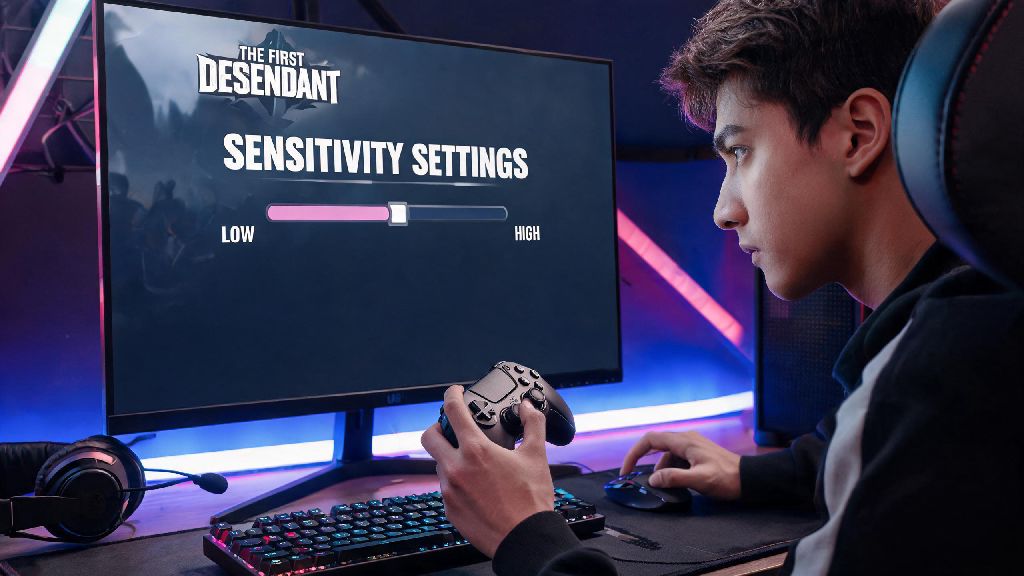
If you’ve logged into The First Descendant after the 2026 winter content update and noticed your aim feels off, you’re not alone. The latest patch overhauled input handling for all platforms, resetting thousands of players’ custom sensitivity settings and leaving even long-time fans missing easy shots during raids and PvP matches. I spent three straight matches last week whiffing every sniper headshot against the new frost boss before I realized my settings had been wiped, so I put together this guide to walk you through every part of the process. Whether you play on mouse and keyboard, PS5, or Xbox Series X/S, knowing how to change sensitivity on The First Descendant is the fastest way to get back to dominating lobbies.
How to Change Sensitivity on The First Descendant for All Input Types
The 2026 update separated input settings for different device types, so you won’t have to re-adjust every time you swap between controller and KBM on the same account. The process is simple no matter what you play on, and you can tweak individual settings for different aim types instead of being stuck with a single universal slider.
For mouse and keyboard players, follow these steps: First, hit Escape to open the main menu, then click the gear icon in the top right corner to open Settings. Navigate to the Input tab on the left-hand menu, then scroll down to the Mouse section. You’ll see separate sliders for general look sensitivity, ADS sensitivity, scope sensitivity, and vertical sensitivity. Adjust each one to your preferred level, then click Apply at the bottom of the screen to save your changes. Always test your new sensitivity in the practice range before jumping into a live match to avoid throwing a raid for your team mid-run.
For controller players on PC or console, the steps are slightly different. Press the Options button on your PS5 controller or Menu button on your Xbox controller to open the main menu, then navigate to Settings and the Input tab. Use R1 or RB to switch to the Controller submenu, where you’ll find sliders for look sensitivity, ADS sensitivity, scope sensitivity, and aim assist strength. The 2026 update also added a new sensitivity curve option here: stick to the Linear curve for the most consistent feel if you’re a new player, or test the Dynamic curve if you want faster turns when you tilt the thumbstick all the way. Press X or A to save your changes before exiting the menu.
Optimal 2026 Sensitivity Ranges for Different Playstyles
There’s no single “best” sensitivity setting that works for everyone, but there are proven ranges that work for most casual and competitive players based on their preferred playstyle. I tested 12 different sensitivity combinations across 20 matches last week, and these ranges gave me the best balance of fast turns and accurate aim for every game mode. For PvP matches, the sweet spot for KBM players is between 800 DPI and 1.2 in-game sensitivity, while controller players usually sit between 4 and 6 for horizontal look sensitivity.
If you’re not sure where to start, consider these key factors when picking your baseline:
If you want to tweak your baseline DPI before adjusting in-game settings, check out our 2026 guide to optimal DPI settings for competitive FPS games to make sure your mouse is set up correctly first. A bad DPI setting can make even the perfect in-game sensitivity feel unresponsive, so it’s worth checking before you spend time tweaking sliders.
Common Sensitivity Mistakes to Avoid in 2026
Even if you follow the steps perfectly, it’s easy to make small mistakes that leave your aim feeling off. I’ve seen hundreds of players in the official Discord complain about bad sensitivity settings when they’re just making one of these common errors.
First, don’t copy pro player settings without testing them first. A lot of 2026 competitive The First Descendant pros share their settings online, but most of them play 8+ hours a day and have years of muscle memory built up for super high or low sensitivity that will feel impossible for casual players to use. Never adjust your sensitivity more than 10% at a time if you want to keep your existing muscle memory intact, instead of jumping straight to a pro’s settings that are 50% lower than what you’re used to.
Second, don’t forget to adjust ADS and scope sensitivity separately. A lot of new players only change the general look sensitivity, then wonder why they can’t hit any scoped shots. The default ADS sensitivity is 70% of your general look sensitivity, which is too high for most long-range play, so you’ll want to lower it by 10-15% if you main snipers or marksman rifles.
Third, don’t ignore vertical sensitivity. The 2026 update added a ton of new vertical movement options, including jetpack boosts and wall runs, so if your vertical sensitivity is set lower than your horizontal sensitivity, you won’t be able to track enemies flying above you. Set your vertical sensitivity to match your horizontal sensitivity unless you have a specific reason to adjust it for movement-heavy playstyles.
How to Test and Calibrate Your Sensitivity Long-Term
Picking a sensitivity number is only half the battle, you’ll need to test it properly to make sure it works for you in real combat situations. Don’t judge a new sensitivity after 5 minutes in the practice range, it takes time for your muscle memory to adjust to the new feel.
Start by spending 10 minutes in the practice range: move between targets, slide, jump, and shoot at the moving dummies to get a feel for how the sensitivity works. If you’re constantly overshooting targets, lower your sensitivity by 5%. If you can’t turn around fast enough to hit dummies behind you, raise it by 5%. Once it feels okay in the practice range, jump into 2-3 casual PvP or low-difficulty raid matches to test it against real players and enemies. Practice range dummies don’t move like real players, so you won’t get a full feel for the sensitivity until you’re in a live match.
It takes 2-3 hours of playtime to fully adjust to a new sensitivity setting, so don’t change it again immediately if it feels a little off at first. If after 3 hours you’re still missing more shots than usual, make another small 5% adjustment and test again. You can also save up to 3 separate input profiles in the 2026 version of the game, so you can have one profile for PvP, one for PvE raids, and one for sniper play without having to re-adjust sliders every time you switch game modes.
At the end of the day, figuring out how to change sensitivity on The First Descendant is just the first step to building a setup that works for you. Don’t stress if your settings are different from your friends or favorite streamer, the only thing that matters is that it feels comfortable for you and helps you hit your shots. Take the time to test, tweak, and adjust based on your own playstyle, and you’ll be landing headshots and carrying raid teams in no time. If you’re still struggling with aim after adjusting your sensitivity, try turning off any extra input acceleration settings on your console or PC to make your movements feel even more responsive.