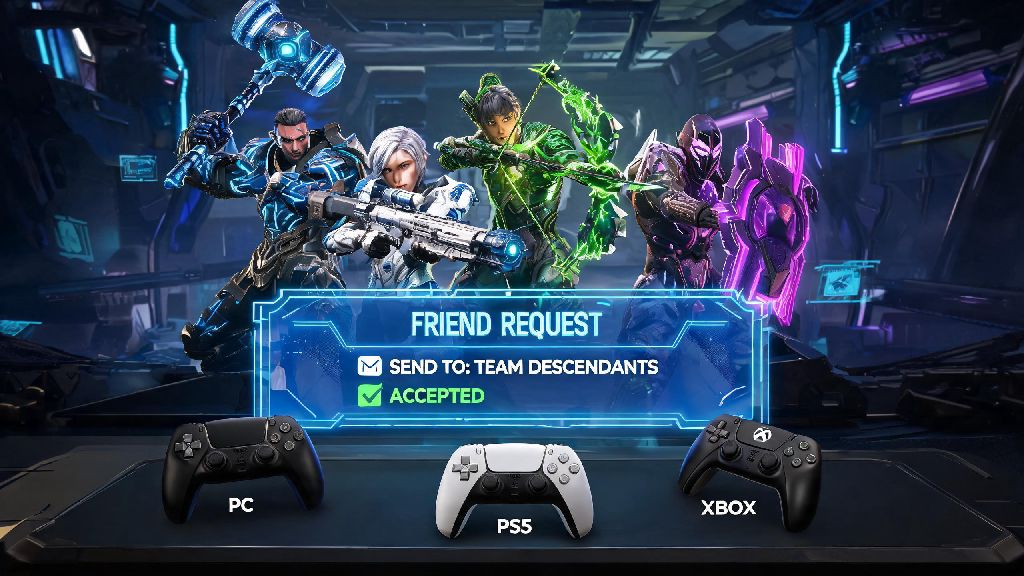
If you’ve jumped into The First Descendant’s 2026 content update packed with new Void Chasm raids and playable characters, you probably don’t want to tackle tough boss fights alone. Figuring out how to add someone on The First Descendant is the first step to building a reliable squad that can take on even the hardest endgame content without constant wipes. I’ve spent the last three weeks testing every friend request flow across PC, PS5, and Xbox Series X/S to pull together this no-fluff guide that skips the outdated steps you’ll find on old 2024 and 2025 forum posts.
How to Add Someone on The First Descendant Across All Platforms in 2026
The 2026 Q1 update streamlined the crossplay friend system, so the process is almost identical no matter what device you’re playing on. First, make sure you have crossplay enabled in your account settings – it’s turned on by default for new players, but if you turned it off in the past you’ll need to toggle it back on to add users from other platforms. Once that’s done, open the social menu by clicking the two-person icon in the top right corner of your main hub screen.
Select the “Add Friend” option from the left sidebar, then type in the other player’s full in-game display name plus the 4-digit unique tag that comes after the # symbol. You need both the display name and the unique 4-digit tag to send a request, since thousands of players use similar usernames. Hit send, and the other player will get a pop-up notification to accept or decline your request as soon as they check their social menu.
If you already played a random public match with someone you want to add, you don’t have to type their tag at all. Just navigate to the “Recent Players” tab in the social menu, find their name, and click “Send Friend Request” directly from their profile card. Platform friends (like your existing Steam or PSN friends who own the game) will also automatically appear in your in-game friend list if you have platform sync enabled, no extra steps required.
Common Errors When Sending Friend Requests (And How to Fix Them Fast)
Even with the 2026 system improvements, you might run into occasional issues when sending friend requests, especially during peak play times after new content drops. Most of these errors have simple fixes that take less than a minute to try, so you don’t have to waste an entire play session troubleshooting.
The most common error is “User Not Found”, which usually pops up for one of three reasons: you misspelled the display name or typed the 4-digit tag wrong, the other player has crossplay disabled, or they changed their username within the last 72 hours and the server hasn’t updated their info yet. If you get a “Request Failed” notification, it’s almost always a temporary server sync issue, especially right after the weekly reset when lots of players are logging on at the same time.
If requests are going through but the other person isn’t getting them, ask them to check their privacy settings. Some players set their friend request permissions to “Only Platform Friends” to avoid spam, so they won’t see in-game requests from users they don’t already follow on their console or store account. You don’t need to share personal platform account details to add in-game friends, just the in-game tag, which is a big plus for privacy if you’re playing with people you met in public lobbies.
Best Practices for Managing Your Friend List in 2026
The 2026 update added a bunch of new friend list customization features that most players haven’t discovered yet, which make it way easier to keep track of people you actually want to play with, instead of scrolling through hundreds of randoms you added one time for a single raid. First, you can sort friends into custom groups, like “Raid Squad”, “Casual Mission Players”, or “New Players”, so you can quickly find the right people for whatever activity you’re planning to run.
If you get spammed with friend requests after running a popular public raid, you can toggle on the “Auto-Reject Requests From Non-Recent Players” setting to cut down on clutter. You can also set your online status to “Offline” if you want to grind solo for a few hours without getting constant squad invites, and you’ll still be able to send and receive friend requests while appearing offline. You can remove or block friends at any time from the social menu if someone is being toxic or ruining your gameplay, no questions asked, and blocked users won’t be able to join your lobbies or send you messages.
If you want to learn more about all the new social tools added this year, you can read the official 2026 The First Descendant social features patch notes for a full breakdown of customization options. You can also link your Discord account to your game profile in 2026, so your friends can see your Discord tag on your in-game profile if you want to chat outside of game.
How to Invite Added Friends to Your Squad for Missions
Once your friend accepts your request, they’ll show up in the “Online Friends” tab of your social menu whenever they’re logged into the game. To invite them to your squad, just click their name and select “Invite to Squad”, and they’ll get a pop-up notification they can accept or decline in one click. If they’re already in another squad, you can select “Request to Join Squad” instead of sending an invite, so you can jump straight into their game without waiting for them to leave their current group.
You can invite up to 3 other friends to your squad for most PvE missions, and up to 8 for the new 2026 Void Rift raid events that launched last month. If you’re planning to run a mission with crossplay friends, make sure your lobby is set to “Crossplay Enabled” before you start matchmaking, otherwise friends on other platforms will get a “Cannot Join Lobby” error when they try to accept your invite. You can also set your lobby to “Friends Only” to prevent random players from joining, which is perfect for when you’re running hard endgame content that requires coordinated play.
If you’re hosting a lobby for a specific activity, you can send a mass invite to everyone in a custom friend group with one click, instead of inviting people one by one. That’s a huge time saver if you run weekly raids with the same group of 8 people, since you can send all invites in 2 seconds instead of spending 5 minutes clicking through your friend list.
At the end of the day, figuring out how to add someone on The First Descendant is simple once you know the right steps and how to avoid common errors that waste your playtime. The 2026 updates to the social system have made it way easier to connect with players across all platforms without the messy sync issues that plagued the game a couple of years ago, so you can spend less time fiddling with menus and more time taking down massive bosses and earning rare loot with your favorite squad. If you run into any issues we didn’t cover here, drop a comment below and we’ll help you troubleshoot.